Do this at the depot, before you leave.
- On My routes, tap your route.
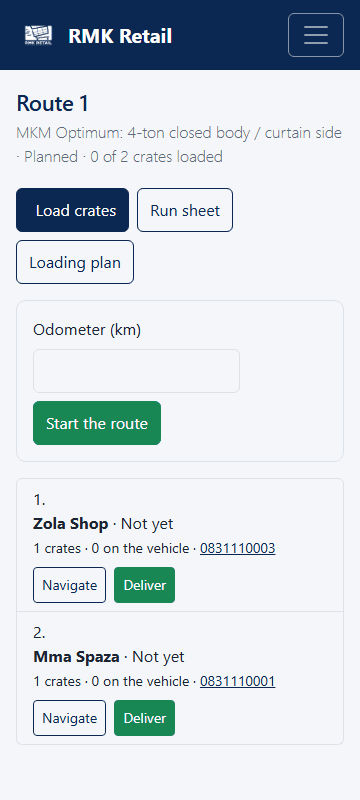
- Tap the white Loading plan button and read it.
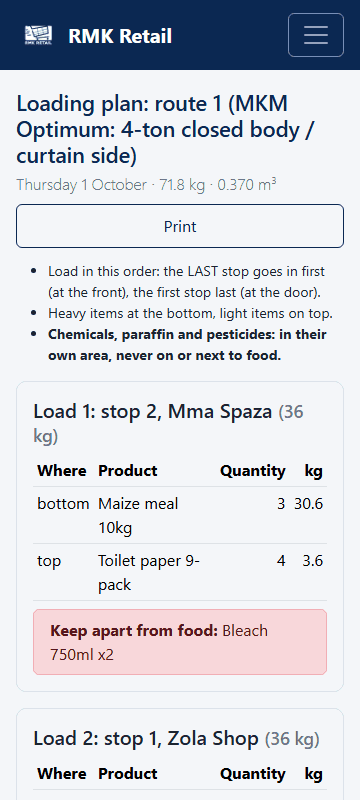
-
Go back and tap the cyan Load crates button.
-
Tap the cyan Start the camera button. The first time, tap "Allow" so the page may use the camera.
-
Point the camera at the code on each crate as it goes into the van.
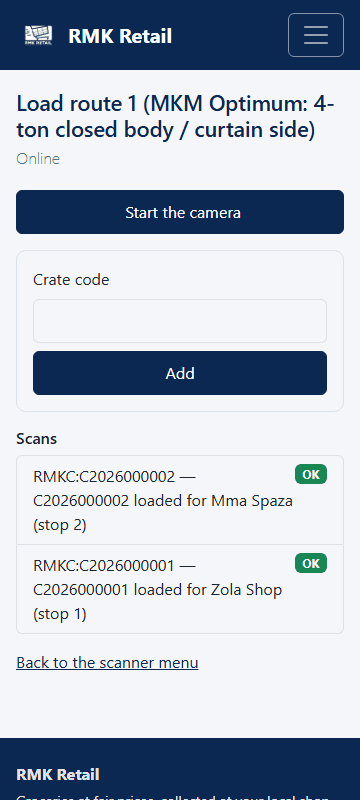
What you will see
Each good scan shows green. Load the last stop first (at the back). Put heavy goods at the bottom. Keep goods marked Keep apart from food (bleach, chemicals) away from food.
If something goes wrong
- The camera does not start. Type the code from the label under Crate code and tap the white Add button. Or allow the camera in your phone's settings.
- A scan shows red. The crate is not for your route. Leave it at the depot.
- No signal at the depot. Keep scanning. The scanner keeps your scans and sends them when the phone is back online.
Ask for help
WhatsApp 064 654 1357 · phone 015 296 4695 · e-mail connect@rmkretail.co.za · Monday to Friday 08:00–17:00, Saturday and Sunday 08:00–14:00.